The Movers scanner
Scan the whole market for what is moving now, with free gainer and loser boards, ready-made scans, and scans you save yourself.
Movers scans the whole market for what is moving right now. It knows the session, so it shows the right thing pre-market, during the day, and after the close.
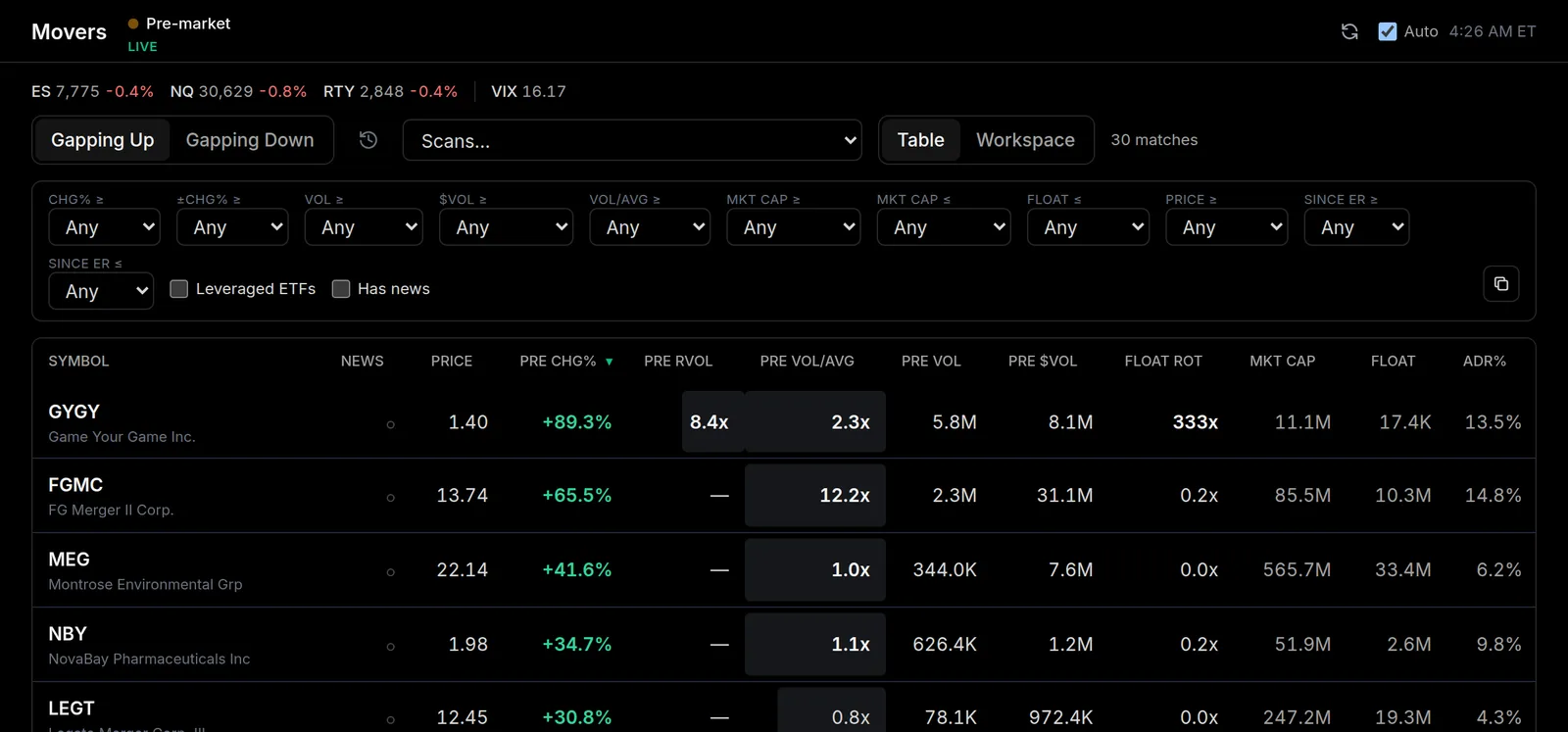
Free boards
The quick views are free and always available:
- During the day: Gainers, Losers, and Most Active
- Pre-market and after hours: Gapping Up and Gapping Down
A status pill shows the current session, and in extended hours the change and volume columns switch to pre or post-market figures.
Ready-made scans and filters
Beyond the boards you can run a filtered scan. The Scans menu holds ready-made ones such as Gap & Go, RVol Surge, Big Volume Movers, Liquid Leaders, Nano-Cap Runners, EP9 and DEP9.
EP9 is the 9 million share scan: names that moved 4%+ either way on 8.9M+ shares at $3 and up. DEP9 is its delayed reaction cousin: names up 4%+ on 8.9M+ shares whose last earnings report was 2 to 45 days ago, so the report is recent but today is not the day it landed. It adds a Since ER column with the age of that report and how the stock closed on the first session to trade it (the report day for a pre-market print, the next day for an after-close one); hover a cell for the report date and the EPS surprise.
Some scans only run at certain times, because they filter on a number the rest of the day doesn't have. Gap & Go, Big Volume Movers, EP9 and DEP9 need a full regular session's gap and volume, so they run from the open right through the overnight but not during pre-market or after hours; overnight they scan the session that just finished, the way an end-of-day screen does. RVol Surge is the strictest: relative volume is only live while the market is open (9:30 AM to 4:00 PM ET). Going the other way, Pre-Market EP and Pre/Post Movers run pre-market and after hours (4:00 to 9:30 AM and 4:00 to 8:00 PM ET). Liquid Leaders and Nano-Cap Runners run at any hour.
The full list is always in the menu: the ones that can't run right now are greyed out with a note on when they come back, and if you open a saved link to one outside its window, the board tells you and switches to it as soon as it can.
You can also set your own filters: change %, move (either direction), gap %, volume, dollar volume, relative volume, volume-versus-average, market cap, float, price, and days since the last earnings report (both ends, so you can set a window). Running a ready-made or custom scan is part of a paid plan; the free boards stay open to everyone.
Saving your own scans
Once the filters read the way you want them, Save scan keeps them. Give it a name and it sits at the top of the Scans menu under My scans, with a link of its own to bookmark. Choosing it fills the filter bar back in exactly as you left it, so a scan you run every morning only has to be built once.
With one of your own scans selected, that button becomes Edit, which is where you rename or delete it.
Your scans follow the same session rules as the built-in ones. Save a scan that filters on gap % or relative volume and it greys out pre-market with a note on when it runs, then starts on its own once that session opens. The number of scans you can keep counts the screener and the scanner together, so a scan deleted on either side makes room on both.
Working a scan beside a chart
Workspace puts the board beside a live chart with the selected name's news underneath, and the arrow keys walk the list. See Workspace: the list beside a chart.
The columns
Each row shows Price, Chg%, Gap%, RVol (relative volume), Vol/Avg, Vol, $Vol, and Float Rot, plus reference columns for ADR%, Market Cap, Float, Short%, and Days to Cover. Click any header to sort. An amber earnings badge flags names reporting soon, and a News marker shows stocks with a story since the prior close. When one of those stories reports a company event, its headline replaces the company name under the ticker, and hovering it shows the name. A ⚡ before it marks an event big enough to move the stock on its own. You can copy the matching tickers to paste into another tool.